

How to Connect a Payment Service Provider (PSP) to Kwugwo#
Kwugwo is a payment orchestration platform that lets SMEs and enterprise businesses connect multiple Payment Service Providers (PSPs), route transactions intelligently, and manage the full flow of customer payments from one place.
Because Kwugwo acts as the central command centre for your payment flows, connecting your preferred PSPs is the first thing you should do after setting up your account. Until at least one PSP is connected, Kwugwo has no provider to send transactions to.
This is the general guide. It shows you where PSPs live in Kwugwo, how to browse the providers we support, and how to start a connection. Because every provider issues credentials differently, the final step, which is entering your API keys, is covered in a dedicated guide for each PSP, linked at the end of this post.
Estimated time: 2 minutes to reach the connection screen; 5–10 minutes to complete a connection using your provider's guide.
Before You Begin#
Make sure you have the following ready:
| Requirement | Why you need it |
|---|---|
| An active Kwugwo account | You'll be connecting the PSP to a specific Nzube. |
| A created Nzube | Your Nzube is your Kwugwo workspace — the container that holds your PSPs, routing rules, and transactions. |
| An account with the PSP | Kwugwo connects to providers you already have a relationship with; it does not create PSP accounts for you. |
| Your PSP API credentials | What's required varies by provider — your PSP's guide lists exactly which keys to collect. |
Prerequisite: If you haven't set up your workspace yet, start with our guide on How to Create an Nzube, then come back here.
Note on terminology: Throughout Kwugwo, an Nzube is your workspace. Everything you connect or configure: PSPs, routing rules, team members, belongs to a specific Nzube. If you operate multiple businesses or brands, you can keep them isolated by using a separate Nzube for each.
Step 1: Viewing Your Connected PSPs#
To get started, open your sidebar and select the PSPs menu:
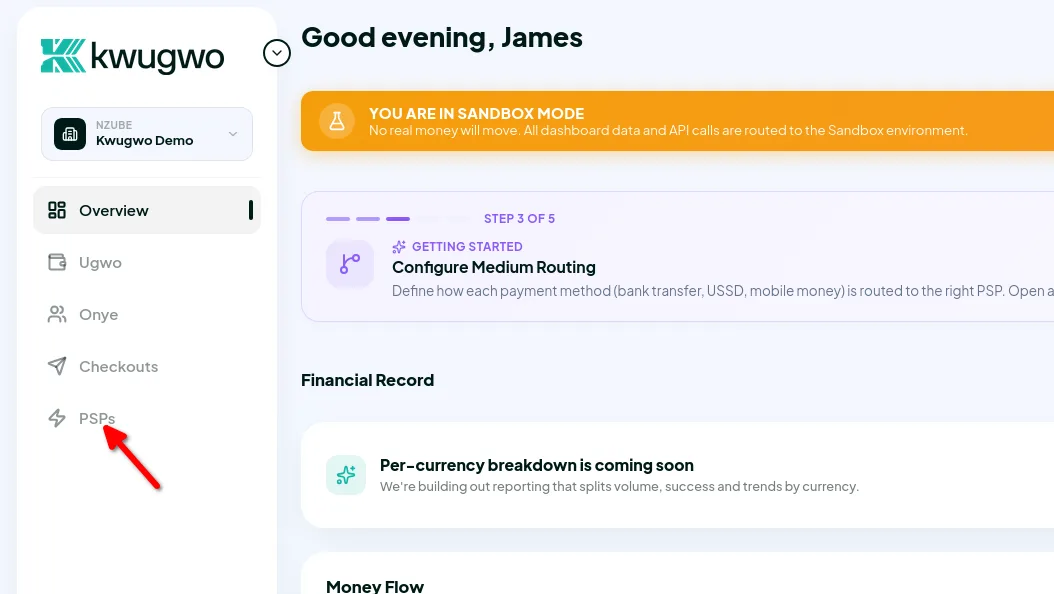
This dashboard displays every PSP currently connected to your Nzube, along with its status and the payment mediums it supports.
If you are setting up your account for the first time, this list will be empty, and that's expected.
Step 2: Browsing the Integration Library#
Click the Connect New PSP button in the top-right corner of the page. You'll be taken to our integration library, which lists every PSP currently supported by Kwugwo:
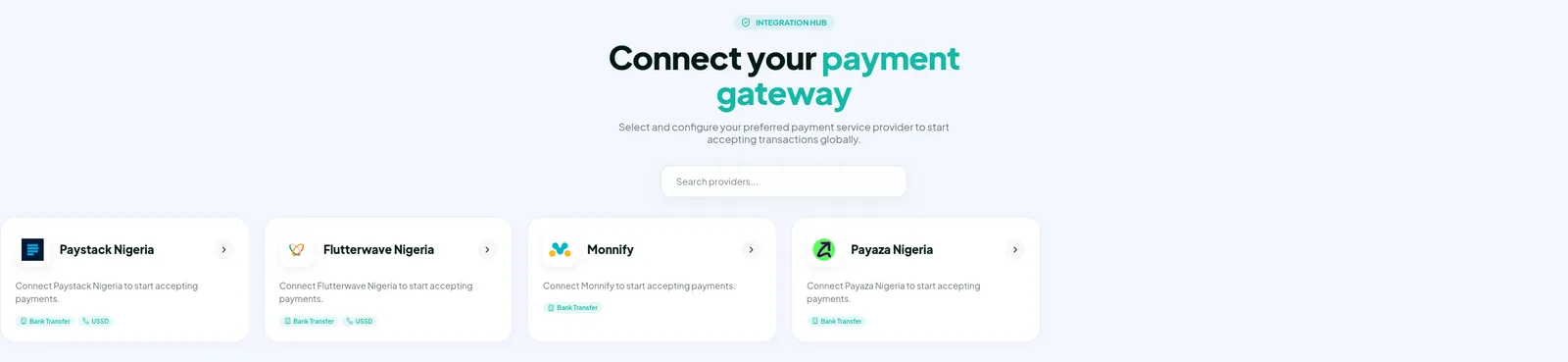
Each card represents a supported provider that is ready for integration. Beneath each provider's name, you'll find:
- Supported payment mediums: For example, cards, bank transfers, USSD, or mobile money.
- Supported countries and currencies: Each PSP serves specific markets and processes specific currencies.
Tip: Before choosing a provider, confirm it supports both the currency you charge in and the payment method your customers actually use. A provider that cannot process your currency will fail at the transaction stage even if the connection itself succeeds.
Click the card of your chosen PSP to begin the connection process.
Step 3: Connecting Your Chosen PSP#
Kwugwo processes payments through your connected PSPs on your behalf. To authorise this, you need to provide that provider's API credentials on the connection screen.
Security#
Your security is our priority:
- All credentials are encrypted at rest and stored in an isolated vault.
- They are only decrypted at runtime, at the moment a transaction is actively being processed.
Recommendation: Where your provider supports it, use API keys scoped to only the permissions Kwugwo needs, and rotate them on a regular schedule.
Choose your provider's guide#
Because each provider has a unique dashboard and credential setup, the exact steps to locate your API keys will vary. Select your provider below for a step-by-step integration guide specific to that PSP:
- How to Connect Paystack (Coming Soon)
- How to Connect Flutterwave (Coming Soon)
- How to Connect Monnify (Coming Soon)
- How to Connect Payaza (Coming Soon)
- How to Connect SquadCo (Coming Soon)
- How to Connect PalmPay (Coming Soon)
Don't see your provider? Let us know which PSP you'd like supported; our integration library is expanding continuously.
Once you've completed your provider's guide, the PSP will appear on your PSPs dashboard, ready to receive traffic.
What's Next: Routing Your Payments Using Checkouts#
Connecting a PSP makes it available; it doesn't yet make it used. Kwugwo decides which provider handles each transaction through routing rules. By default, a checkout is created for you with our Smart Router enabled.
Once you have at least one connected PSP, you can:
- Set a primary provider — the default destination for your transactions.
- Add fallback providers — so a transaction automatically retries on a second PSP if the first declines or times out.
- Route by condition — send traffic to different providers based on currency, country, payment method, transaction amount, or cost.
Next guide: How to Set Up Checkouts in Kwugwo.
Connecting a second provider is what unlocks most of Kwugwo's value: with two or more PSPs live, you get automatic failover, better authorisation rates, and the ability to route each transaction to whichever provider handles it best.
Frequently Asked Questions#
Can I connect more than one PSP?
Yes. We recommend it. Multiple providers let you set up fallbacks and route each transaction to the best-suited provider.
Can I connect the same PSP twice?
Yes. This is useful if you hold separate merchant accounts with the same provider. For example, one per country or per business entity.
How do I update my API keys?
Open the PSP from your PSPs dashboard and replace the stored credentials. Rotate the keys on the provider's side first, then update Kwugwo promptly to avoid failed transactions in between.
Does Kwugwo hold my money?
No. Kwugwo orchestrates and routes transactions; funds settle directly from your PSP into your own provider account, according to that provider's settlement schedule.
Does connecting through Kwugwo change my PSP fees?
No. Your commercial terms remain between you and your provider. Kwugwo simply directs which provider processes each transaction, which is precisely how you can route toward your lower-cost providers.
My credentials were rejected. What now?
Credential errors are almost always provider-specific, either the wrong key type or keys copied from the wrong environment. Re-check the steps in your PSP's dedicated guide, then contact Kwugwo support if the problem persists. Never send us your secret keys.
Need help? Reach out to the Kwugwo support team. We're happy to walk through your first connection with you.